Leader Board

Showing posts with label Dynamics ax BI. Show all posts

Walkthrough: Defining KPIs for a Cube [AX 2012]


Prerequisites


To complete this walkthrough, you will need:

  • Microsoft Dynamics AX with sample data
  • The MyCustomers cube from  Creating Cubes [AX 2012] Post.
  • SQL Server Business Intelligence Development Studio (BIDS) or SQL Server Data Tools
  • Configure Analysis Services by running the Microsoft Dynamics AX Setup wizard

Defining a KPI for Inventory Quantity


To display your KPI in a Business Overview web part on a role center, you must define value, goal, status, and trend expressions for the KPI. If you exclude one of the expressions, the KPI will not display properly.

To create a KPI for Inventory Quantity

  1. In BIDS, open the Analysis Services project that contains the Sales analysis cube, and then double-click MyCustomers .cube.
  2. Click the KPIs tab.
  3. On the toolbar for the KPIs tab, click New KPI. A form displays that allows you to define the KPI.
  4. For the Name field, type Customer sales.
  5. For the Value Expression field, type the following expression.

[Measures].[Total customer sales Count]

This expression retrieves the quantity in inventory units.

clip_image001[1]Note

You can drag measures from the Metadata tab of the Calculation Tools pane to help you create expressions.

  1. For the Goal Expression field, type the following expression.

7500

This expression identifies the goal for the inventory quantity.

  1. For the Status indicator field, select Gauge from the drop-down list.
  2. For the Status expression field, type the following expression.
Case
When
[Measures].[Total customer sales Count] >= 7500
Then 1
When
[Measures].[Total customer sales Count] < 7500
AND
[Measures].[Total customer sales Count] > 6500
Then 0
Else-1
End


This expression provides a basis to evaluate progress toward meeting the goal. The graphic that displays for status of the KPI depends on what value this expression evaluates to.


  1. For the Trend indicator field, select Standard arrow from the drop-down list.
  2. For the Trend expression field, type the following expression.
Case
When
[Measures].[Total customer sales Count] >= 3000
Then 1
When
[Measures].[Total customer sales Count] < 3000

Then -1
End

This expression provides a basis to evaluate the status in some historical context. The graphic that displays for the trend of the KPI depends on what value this expression evaluates to. Typically, the trend expression would evaluate the current status relative to a previous status.

To view the KPI


  1. On the Build menu, click Deploy Dynamics AX MyCustomers .

clip_image001[2]Note: The name of the database may vary.


  1. On the toolbar for the KPIs tab, click Browser View. The KPI displays in the list.

Microsoft Dynamics AX Demo -- Business Intelligence Video


Microsoft Dynamics AX Demo -- Business Intelligence Features (Part 1 of 3)

Microsoft Dynamics AX Demo -- Business Intelligence Features (Part 2 of 3)


Microsoft Dynamics AX Demo -- Business Intelligence Features (Part 3 of 3)


Build a KPI Dashboard in 5 minutes


Integrate Microsoft Dynamics AX analytic components with external data sources

Data warehouses are a popular solution for providing analytic capabilities to users. Until recently, data warehouses were the only reasonable solution for building robust analytic capability. However, as applications become easily interoperable and as technologies such as in-memory databases and OLAP become cost-effective and simpler to use, building a data warehouse is not the only solution to meet analytic requirements.
Table below presents several architecture options for integrating external data with the prebuilt
analytic solution; a data warehouse is just one of the options. The columns represent architecture options, whereas the rows represent the benefits and cost implications of each option.

image

When most data is in Microsoft Dynamics AX (assuming that Microsoft Dynamics AX is the
predominant  source of data in the organization), you have two options.

The data mash-up option is best suited to an environment where capable users author and publish analyses for the use of others. This option relies on client tools such as Excel PowerPivot. Microsoft Dynamics AX 2012 enables Microsoft Dynamics AX queries to be published to data mash-up tools through OData feeds, or as data exports to Excel.

You can bring external data into Microsoft Dynamics AX either through services (data services consumed by means of inbound ports) or as batch jobs that are executed periodically to import data into tables. With this approach, external data is represented as read-only data within Microsoft Dynamics AX. The benefit to this approach is that external data appears as native Microsoft Dynamics AX data to Microsoft Dynamics AX tools. You can create analytics, reports, and inquiry forms that use the combined data.

A more complex approach involves integrating external data directly into the prebuilt BI solution.
With this option, a BI developer adds another data source to the prebuilt BI solution by using Business Intelligence Development Studio. Additional data tables are brought into the DSV by using the new data connection. It is possible to create dimensions and measures by using the new tables in the DSV.

The traditional ETL-based data warehouse option is suited to scenarios that require complex
transformations or large volumes of data. Although this option is more flexible in terms of capabilities, it is also the most expensive to implement and manage.

You might want to build a data warehouse to implement the following scenarios:

■ Integrate external data sources with Microsoft Dynamics AX data In this approach, the Microsoft Dynamics AX implementation serves as one of many corporate applications.
Although Microsoft Dynamics AX contains some of the corporate data, other systems contain
a considerable portion of the data. To make decisions, data must be combined across systems, and the data warehouse serves that need.
■ Incorporate legacy data into Microsoft Dynamics AX analytics Most organizations
migrate recent data when implementing Microsoft Dynamics AX. Legacy data is still
maintained in read-only instances of legacy applications. Although legacy data is no longer
used for operational purposes, it is required for historical trend analysis. A data warehouse
serves as the repository where legacy data is combined with current data.

Although Microsoft Dynamics AX 2012 does not directly support the creation of a data warehouse schema, the following artifacts generated in Microsoft Dynamics AX 2012 can be used to build a data warehouse:

■ The DSV generated as part of the prebuilt analytic solution can be used within SQL Server
Integration Services when an ETL package is developed to extract data from Microsoft
Dynamics AX.
■ Microsoft Dynamics AX document services can be consumed as data sources based on Simple Object Access Protocol (SOAP).
■ Microsoft Dynamics AX queries can be exposed as OData feeds.

Extend cubes [AX 2012]

you can customize the prebuilt analysis project relatively easily by using the SQL Server Analysis Services Project Wizard. But in some cases, you may want to make
deeper customizations. For example, you might want to:
■ Create a rich hierarchy, such as a parent/child hierarchy to model organizational units.
■ Add new KPIs.
■ Bring external data into the analysis project and create a custom dimension.
You can use Business Intelligence Development Studio to make these types of changes.

Because the prebuilt BI components are included in the AOT as an SSAS project, you can modify the project. To modify the prebuilt Analysis Services project, do the following:
1. In the AOT, expand the Visual Studio\Analysis Services Projects node.
2. Right-click the project that you want to modify, and then click Edit.
An Infolog message appears, stating that a copy of the SSAS project has been created and saved, as shown in Figure below

 image

If SQL Server Business Intelligence Studio is installed, it will start and open the copy of the project.
Changes that you make to the project are not automatically saved to the AOT. You need to save the project and import it back into the AOT.

DSV
The DSV contains the table and view definitions that are used by analytic artifacts. Notice that the OLAP framework has implemented several query definition patterns in the DSV:
■ Financial dimensions that the wizard has added appear as custom query definitions in the DSV.
■ The OLAP framework has created query definitions corresponding to Microsoft Dynamics AX views.
■ The OLAP framework has added a reference relationship to resolve virtual companies, if your Microsoft Dynamics AX installation has virtual company definitions.
■ The OLAP framework has created views that make Microsoft Dynamics AX enumerations accessible

in all of the languages that have been added to the project.
Avoid modifying any of the framework-generated objects in the DSV. Any changes that you make to these objects are overwritten without warning the next time you update the project.
You may add your own objects to the DSV (for example, new query definitions. The Project Update  option will preserve these objects.
In Microsoft Dynamics AX 2012 R2, do not implement any partition-specific logic in any of the query definitions. Otherwise, when the project is deployed to multiple partitions, the system may
generate processing errors. (Because the framework adds partition-specific logic to the DSV at deployment time, it may not apply the changes accurately to your query definitions.)

Data source
A data source has been created that points to the Microsoft Dynamics AX OLTP database.


Dimensions, measures, and measure groups

In Figure below , notice the dimensions that are included with the Microsoft Dynamics AX 2012 prebuilt BI solution, as well as the measures and measure groups.
For a list of measures and dimensions, see “Cube and KPI reference for Microsoft Dynamics AX 2012” at http://msdn.microsoft.com/en-us/library/hh781074.aspx.
image

KPIs and calculations
The SSAS project contains prebuilt KPIs and calculations. Microsoft Dynamics AX 2012 does not provide the capability to model KPIs and calculations in the AOT. You can modify these definitions or
add new ones directly in Business Intelligence Development Studio.

Customize cubes [AX 2012]

This post related to this post [Customizing the prebuilt BI solution]

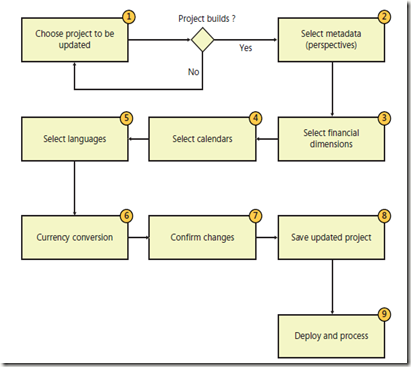
Figure below shows the process for updating a cube. This post walk through each step in detail.
image

Choose the project to update

The first step is selecting the project to modify. You can select an SSAS project in the AOT or a project maintained on disk. The wizard performs basic validation of the selected project before you can proceed.
The update process is designed to ensure that you end up with a project that you can
deploy and process without any errors. If the selected project does not build (the most basic measure of validity), the wizard will not let you proceed to the next step.

Select metadata
Next, you select the Microsoft Dynamics AX metadata that you want to include or exclude, as shown in Figure below. The metadata that is defined in the Perspectives node in the AOT is the source of metadata for the prebuilt BI solution. By including or excluding metadata definitions, you can include (or exclude) measures, dimensions, and even cubes

image

For example, if you remove the Accounts Receivable perspective from the selection, the Accounts Receivable cube will be removed from the project that you are updating. If you model a new perspective in the AOT and include it in the project, the corresponding measures and dimensions will be created and added to the SSAS project.

For a description of metadata definitions and the resulting analytic artifacts, see “Defining Cubes in Microsoft Dynamics AX” at http://msdn.microsoft.com/en-us/library/cc615265.aspx. Metadata will be covered later in post with title “Creating cubes”.

Select financial dimensions
On the next wizard page, you are prompted to select the Microsoft Dynamics AX financial dimensions to include in the project, as shown in Figure below

image

Each financial dimension that you select is added as an OLAP dimension with the same name.
If a dimension by that name already exists within the SSAS project, the system will disambiguate the newly added dimension by adding a suffix.


Select calendars
Next, the wizard prompts you to select the calendars to include as date dimensions, as shown in Figure below. If you have defined any additional calendars, you can include them in the project at this point.

image

In Microsoft Dynamics AX 2009, the prebuilt analysis project included two date dimensions: a
Gregorian calendar–based dimension called DATE and a fiscal calendar–based dimension called FISCALPERIODDATEDIMENSION. If you wanted to include additional date dimensions, you would have had to customize the prebuilt project by using Business Intelligence Development Studio.

Microsoft Dynamics AX 2012 includes a utility called Date Dimensions that lets  you define custom calendars for analysis purposes. A default calendar, Date, is included with the product, and you can define additional calendars by using Date Dimensions.

For each calendar that you add on this wizard page, the system creates a date dimension in the SSAS project. For example, if you added a new calendar called Sales Calendar, the system will add a date dimension called Sales Calendar. In addition, the system will create role-playing date dimensions that correspond to each of the dates that are present in cubes. You can’t remove the prebuilt date dimension from the project.

You can start Date Dimensions directly from the SQL Server Analysis Services Project Wizard, or from the System Administration area page.

You can define a calendar by selecting the beginning of the year and the first day of the week.
For example, for the Sales calendar, the year starts on April 1 and ends on March 31, and the week starts on Sunday. You can enter a date range to specify the calendar records that you want the system to populate in advance. You can also select the hierarchies that will be created for each calendar.

When you close the form, if you added or modified calendars, the system will populate dates
according to the new parameters that you defined. In addition, the system will add the required
translations. As you will notice later, the system adds a rich set of attributes for each calendar defined here. You can use any of these attributes to slice the data contained in cubes.

In addition, Date Dimensions adds a NULL date record (1/1/1900) and a DATEMAX date record
(31/12/2154) to each calendar, so that fact records that contain a NULL date or the DATEMAX date will be linked to these extra records, preventing an “unknown member” error from occurring during cube processing.

Select languages

The prebuilt SSAS project uses EN-US as the default language. However, you might have sites in other countries/regions and want the users there to be able to view measure and dimension names in their own languages.

The project can include additional languages through a feature in SSAS called Translations. The
Translations feature enables dimensions, measures, many other kinds of metadata, and data to be translated to other languages by letting you add companion text in other languages.

For example, if you add German translations to the project, when a German user views data in a cube by using, for example, Microsoft Excel, data labels are displayed in German.

The prebuilt SSAS project does not include translated strings. However, translated labels are
already available in the system. The SQL Server Analysis Services Project Wizard lets you add any of the required languages to the project by using existing translations from within Microsoft Dynamics AX, as shown in Figure below.

image

It is recommended that you add only the translations that you need. Each translation adds strings to your project, and the size of the project increases by a few megabytes each time you add a language. In addition, processing gets a bit slower and the size of the backup increases.

If you have the Standard edition of SQL Server 2005 or SQL Server 2008, you could not add
additional translations (for Microsoft Dynamics AX 2009). You had to buy the Enterprise edition of SQL Server in order to add translations to cubes. This restriction has been removed in SQL Server 2008 R2 and later versions.

Labels associated with Microsoft Dynamics AX tables and views are carried through to the
corresponding dimensions and measures. It is also possible to add specific labels to dimensions and measures by defining the labels in perspectives.

If you manually add translations to the project in Business Intelligence Development Studio,
the wizard overwrites the labels every time you run the Update function, by sourcing labels from
Microsoft Dynamics AX. To add your own translations, either define a new label and associate it with the object or change the translation in Microsoft Dynamics AX by using Microsoft Dynamics AX Label Editor.

Add support for currency conversion
The prebuilt SSAS project contains the logic to convert measures that are based on the Microsoft Dynamics AX extended data type (EDT), AmountMST, to other Microsoft Dynamics AX currencies. For example, if the amount was recorded in USD, you can display the value of the amount in GBP or EUR by using the analysis currency dimension to slice the amount.
If you want to, you can exclude currency conversions by clearing the check box on the wizard page shown in Figure below

image

Note Removing support for currency conversion not only removes this feature but might
also cause prebuilt reports to fail, because they rely on the currency conversion option to
be displayed in Role Centers.

Confirm your changes
When you click Next on the Add Currency Conversion page, the wizard goes to work, performing the following tasks:
■ Generates a new project based on the perspectives and other options that you have chosen.
■ Compares the newly generated project with the project you wanted to update.
■ Displays the differences between the new project (that is, the changes you want to apply)
and the old project, as shown in Figure below

image
In the wizard, it is assumed that you want to confirm all changes; therefore, all changes are
selected by default. If you want the wizard to apply all changes, click Next, and then the wizard will create a project that includes the changes that you selected.

However, if you are an experienced BI developer and want more granular control of the Update
option, you can examine the updates in detail and accept or reject the changes.
Be aware, however, that making changes to the wizard at a granular level may result in
inconsistencies within the analysis project. If such inconsistencies result in a project that does not build, the wizard displays a message to inform you.

Here are some examples of when you might want to evaluate changes individually:

■ You might have removed some perspectives from the generation process (for example, you
have not implemented Project Accounting functionality in Microsoft Dynamics AX and are
therefore not interested in the Project Accounting cube). Ordinarily, the system would remove
the resulting analytic artifacts, including a dimension. However, you may want to use that
dimension in analysis, even if the Project Accounting cube is not used. Therefore, you reject
the deletion of that dimension.
■ You have added extra attributes to the customer dimension by using Business Intelligence
Development Studio. The system would ordinarily delete these extra attributes, because they
are not associated with Microsoft Dynamics AX metadata. However, you may want to reject
the deletion and keep these extra attributes intact.

Save the updated project
Next, the wizard applies the changes you specified in the previous step. If you simply clicked Next (that is, you did not make any changes to the options selected by the wizard), the wizard would save the resulting project.
If you made changes and the wizard encountered inconsistencies (that is, the project is in an error state and does not build), it displays a warning asking whether you want to save the project or go back to the confirmation step and reconsider the changes.
If you choose to save the project in an inconsistent state (if you are an experienced BI developer, you might choose this approach), you must fix the project by using Business Intelligence Development Studio; otherwise, subsequent deployment steps will be unsuccessful.

Deploy and process cubes
Next, you can deploy the cubes to an SSAS server and, optionally, process the cubes. As discussed in the ”Deploy cubes” in another post before “ Customizing the prebuilt BI solution”, in a multiple-partition environment in Microsoft Dynamics AX 2012 R2, the system will deploy the project to multiple SSAS databases.

Implementing the prebuilt BI solution [AX 2012]

Traditionally, BI solutions are implemented during the second or third phase of an Enterprise Resource Planning (ERP) implementation project. Needless to say, project fatigue sets in (and the budget gets exhausted), and subsequent phases are postponed or delayed. BI implementation is complex and involves the integration of many components. Also, the skill set required to implement a BI solution is distinctly different from the skill set required to implement an ERP system. Often, implementation of the BI solution involves engaging a different partner or consultants. All of these factors contribute to postponing the BI implementation.

Microsoft Dynamics AX 2012 simplifies the implementation of a BI solution, so that all Microsoft Dynamics AX 2012 partners and customers (regardless of whether they have access to BI specialists) can implement the prebuilt BI solution when they implement the ERP functionality.

In Microsoft Dynamics AX 2012, the default SQL Server Analysis Services (SSAS) project is a
first- class citizen of the Application Object Tree (AOT), as are other SSAS projects that you create in the AOT. This means that SSAS projects derive all of the benefits of being residents of AOT.
■ SSAS projects respect the layering concept. This means that an independent software vendor (ISV) or partner can distribute a customized version of an SSAS project that adds additional analytic components to the solution that is included in the SYS layer.
■ You can import and export SSAS projects to and from different environments as part of a model (by using models or .xpo files).
■ SSAS projects respect the version control capabilities offered by AOT-based artifacts.

When you deploy a project by using the SQL Server Analysis Services Project Wizard, which is new in Microsoft Dynamics AX 2012, the wizard selects the project in the highest layer for deployment.

If you examine the Visual Studio Projects node in the AOT, will see the default SSAS project that is included with Microsoft Dynamics AX 2012, as shown in Figure below. If you have any customizations at higher levels, they are also displayed.

image

Implementing the prebuilt BI solution consists of the following steps:
1. Implement the prerequisites.
2. Configure an SSAS server.
3. Deploy the cubes.
4. Process the cubes.
5. Provision users so that they can access the analytic data.


The following sections describe each step in further detail.

1- Implement the prerequisites
Before you implement the analytic components in the prebuilt BI solution, the following Microsoft Dynamics AX core components should be in place:
■ At least one AOS instance must be implemented.
■ The Microsoft Dynamics AX Windows client must be implemented, and the initialization checklist must be completed.
■ The Enterprise Portal web client must be configured.

If you are implementing the analytic components on a development or test instance, you might not implement a scale-out architecture. However, if you are implementing these components in a
production system, you may want to implement a redundancy or load balancing infrastructure. You need to configure the clustering or Network Load Balancing (NLB) solution before you implement the
analytic components.


2- Configure an SSAS server
This step configures a given SSAS server for the Microsoft Dynamics AX 2012 analytic components.

To do so, run the Configure Analysis Extensions step in the Microsoft Dynamics AX Setup wizard on the SSAS server that hosts Microsoft Dynamics AX 2012 cubes.
Running the configuration step should take you a few minutes. This function does the following:
■ Ensures that the SSAS server has all of the necessary prerequisites to host Microsoft Dynamics AX 2012 cubes.
■ Adds the Business Connector (BC) proxy user as an administrator of the SSAS server. This step is required to enable AXADOMD data extensions to operate without the use of Kerberos
constrained delegation.
■ Allows you to add a read-only user account to the Microsoft Dynamics AX 2012 database for processing cubes (you should specify a domain account whose password does not expire).


3- Deploy cubes
When you deploy cubes, Microsoft Dynamics AX generates and processes an OLAP database by using the metadata definition contained within the Analysis Services
project that is included with Microsoft Dynamics AX 2012. The result is an OLAP database that contains
Microsoft Dynamics AX cubes that are referenced by analytic reports and Role Centers.
In a Microsoft Dynamics AX 2012 R2 environment where there is only a single partition, the deployment step generates a single OLAP database that sources data from the Microsoft Dynamics
AX OLTP database. In a multiple-partition environment, the deployment step generates multiple OLAP databases that correspond to each partition. Figure below shows the deployment process both
in a single-partition and multiple-partition environment.

image

You use the SQL Server Analysis Services Project Wizard in the Microsoft Dynamics AX 2012 client to deploy, process, and in some instances, update cubes. To deploy the cubes, you must have the
right to deploy projects to the SSAS server. If you are also processing the cubes, you must have the right to read the Microsoft Dynamics AX 2012 OLTP database.

To start the SQL Server Analysis Services Project Wizard and deploy cubes, do the following:
1. In the Development Workspace, on the Tools menu, click Business Intelligence (BI) Tools > SQL Server Analysis Services Project Wizard.
2. On the Welcome page, click Next, and then select the Deploy option on the next page, as shown in Figure below

image

3. On the next page, you select an SSAS project to deploy—in this case the Dynamics AX project.
You can select a project in the AOT, as shown in Figure below, or you can select a project that is saved on a disk.

image

4. Next, you specify the SSAS server to deploy the project to, the SSAS database you want to use, and whether you want the project to be processed after deployment .
By default, the wizard uses the SSAS server that you configured earlier, but you can select any server to deploy the project to.

image

Deploy cubes in an environment with multiple partitions
As mentioned earlier, in a Microsoft Dynamics AX 2012 R2 environment with multiple partitions, the SQL Server Analysis Services Project Wizard generates an OLAP database for each partition. You can
use the wizard to select the partitions for which OLAP databases are created, as shown in Figure below

image

In this case, the SQL Server Analysis Services Project Wizard deploys the SSAS project to multiple OLAP databases. In each database, <partitionkey> is added as a suffix to the name of the OLAP
database.
Also, within each OLAP database, the data source view (DSV) is modified so that a partition filter is applied to all queries. Figure 10-8 shows the architecture of an environment with multiple partitions.
In all cases, the SSAS project in the AOT is partition-unaware, whereas the OLAP databases that are deployed are partition-specific. The SQL Server Analysis Services Project Wizard handles the step of
making sure that each OLAP database is wired to read data only from the corresponding partition in Microsoft Dynamics AX. This is a departure from the behavior of Microsoft Dynamics AX 2012. You
need to be aware of the following implications:
■ If you deploy Microsoft Dynamics AX SSAS projects by using Analysis Services tools, such as the Deployment Wizard or Business Intelligence Development Studio, the resulting OLAP
database is not partition-aware. In other words, cubes will aggregate data across partitions.
■ If you want to extend an SSAS project, always check out and modify the project in the AOT.
Do not customize a project associated with a specific partition by importing the project directly in Business Intelligence Development Studio. The Deploy function in the wizard will overwrite any partition-specific customizations that you have made directly on the server.
■ If you add custom query definitions in the DSV, the wizard adds where clauses to each select statement that restrict rows from other partitions.

image

4- Process cubes
The SQL Server Analysis Services Project Wizard lets you process deployed cubes directly. However, before processing, the wizard also runs through several prerequisite checks to ensure that cube
processing will not fail later. If you are using demo data, you can ignore these preprocessing warnings and have the wizard process the cubes.

While the project is being processed, the wizard displays a progress page. When processing is complete, click Next, and the wizard will show the completion screen.


5- Provision users in Microsoft Dynamics AX
After you deploy and process Microsoft Dynamics AX cubes, you must grant users permissions to access them. Provisioning users involves two activities:
■ Associate an appropriate user profile with each Microsoft Dynamics AX user.
■ Provide Microsoft Dynamics AX users with access to the OLAP database.

Components of the Microsoft Dynamics AX 2012 BI solution

Figure below shows a simplified architecture diagram of the BI solution that is included with Microsoft Dynamics AX 2012. In the figure, the Microsoft Dynamics AX 2012 logical architecture has been
simplified to highlight only the components that are relevant to the BI solution.

The solution is divided into three tiers:
■ Data tier Contains sources of data, such as the Microsoft Dynamics AX 2012 operational database, often referred to as the online transaction processing (OLTP) database.

■ Integration tier Contains the Application Object Server (AOS), programming interfaces, and staged data, such as Microsoft Dynamics AX 2012 cubes, that serve as the database for
analytical reporting. (This tier is called also middle tier in from “Architectural overview.” perspective.

■ Presentation tier Contains tools and user interface elements that users can use to interact with data.

image

Imparted from Inside Dynamics AX 2012 Book

Reporting service deployment errors for Dynamics ax 2009


Error: “THE FOLLOWING COMPONENTS HAVE NOT BEEN INSTALLED OR ARE NOT CONFIGURED CORRECTLY: AL.EXE, MICROSOFT DOMAIN – SPECIFIC LANGUAGE TOOLS”
This error message indicates that the following software components are not installed:

• Windows SDK for Windows Server 2008 and .NET Framework 3.5
• Microsoft Visual Studio 2008 Shell (isolated mode)


Error: “THE MICROSOFT.DYNAMICS.CLRBRIDGE.DLL FILE IS NOT LOADED”


1. Close the Microsoft Dynamics AX Reporting Project Deployment form.
2. click Start Menu ---> Dynamics ax folder ---> right click on “Dynamics Ax 2009 reports Deployment then “ then run as Administrator

Walkthrough: Displaying KPIs in a Role Center [AX 2012]

You can display the KPIs that you created in a web part on your role center page in Microsoft Dynamics AX or Enterprise Portal.

The following procedure explains how to add the Sales Analysis KPI to a web part in the CEO Role Center page.

To display the KPIs in a Business Overview Web part
  1. Navigate to the CEO role center that is located at http://<server>/sites/DynamicsAx/Enterprise%20Portal/RoleCenterCEO.aspx.

  2. On the Site Actions menu, click Edit Page. Locate the Middle Column section, and then click Add Web Part

  3. In the Categories list, click Microsoft Dynamics AX. In the Web Parts list, select Business overview, and then click Add.

  4. On the drop-down menu for the web part, click Edit Web Part. The properties for the web part are displayed.

  5. For the Select mode property, select KPI List.

  6. Expand the Business Overview Setup node.

    NoteNote

    The Business Overview web part points to the default Dynamics AX Analysis Services database. You can use any KPIs that ship with Microsoft Dynamics AX and any KPIs that you add to that database. If you create another database, you must create an Office Data Connection (ODC) file that points to that database. You then must specify the location of the ODC file in Data Connection.

  7. For the Title property, type Sales KPIs. Click OK to save the changes.

  8. In the Sales KPIs web part, click Add KPIs.

  9. In the Business Overview - Add KPI dialog box, select the Sales Analysis cube, select the Customer sales KPI, select Amount for the Display value as field, and then click OK.

    NoteNote

    If you created a new Analysis Services database that has only the SalesAnalysis cube, you do not need to select a cube in the Business Overview - Add KPI dialog box.

  10. Click Stop Editing to save the changes made to the page.

Dynamics ax BI installation Trouble Shouting


(1) Installation of Enterprise portal component, gives the following
error:Error executing code: SysDevelopmentProxy (object) has no valid runable
code in method 'generate'.


a. Go to Ax Client ( on a machine where Business Connector is installed)

b. Open the AOT\Classes node

c. Right click on the SysDevelopmentProxy class node and select compile

and make sure it compiles correctly. Then run the EP deployment.

(2) I have successfully created the EP Site and I can view the site.
But other users are not able to view it.


a. Make sure the user is added to Ax and to the right AX user groups.

b. Make sure the user is configured as Employee or Customer or Vendor in User
Relations form in Ax k

c. Make sure the user is added in EP site using Site Settings

   i. Click on the “Site Actions” tab, and select “Site Settings”
from the drop down list

   ii. Click the “People and groups” link

   iii. Click the “New” button, in the “Add Users” page click the
“Add all authenticated users” and check all the permissions boxes to give all
configured users full rights

   iv. Click “OK”

(3) Role Centers are working fine in EP , but are not coming up in
Ax Client


a. Make Sure the "Web site used to dispaly Role Center in the Ax
Client " setting in Administration -> Setup -> Internet -> Web
Sites form at the bottom right is set to the right EP site

b. Navigate to the EP site mentioned in the above setting and verify none of
the web parts are throwing any error. If any web part is not rendering
correctly , either fix the source of the problem for that web part or remove
that web part

(4) After I added “Business Overview WebPart”, I tried to add some
indicators.
It gave the error message “An error has occurred while
processing the business overview indicator. Check the web server application
event log for more information.”
From Event Viewer:“An unexpected
error has occurred.The period is not valid......"

Did you initialize the profiles? You need to "Initialize Role
Center Profiles" from Basic->Setup->Role Center or Import Time Periods
from Administration -> Setup -> Business Analysis -> OlAP -> Time
Periods


(5) In Enterprise Portal setup BC Proxy
Account cannot be set if the FQDN is not a superset of the short domain name


In Enterprise Portal setup BC Proxy Account cannot be set if the
FQDN is not a superset of the short domain name

if the FQDN is different from the short domain name , for example

If the FQDN = XYZ.microsoft.com

and the short dominname = XYZCORP

then setting the BCProxy user during EP setup fails.

To workaround,

(1) change the app pool in IIS used by the EP Site to  to be run by the bc
proxy account with the FQDN specified.

(2) Also blank out the business connector proxy account in Ax.

(3) Then run EP setup and n the BC proxy user dialog , use the FQDN of the bc proxy.

(6)Manage Deployments dialog in Ax Client for Enterprise Portal may
not function correctly on 64 bit machine


Manage Deployments dialog in Ax Client for Enterprise Portal may not
function correctly on 64 bit machine

Administration->Setup -> Internet -> Enterprise Portal -> Manage
deployments on 64 bit machine may give

"Manage Deployment can not run because Enterprise Portal is not deployed
on this computer" even though Enterprise Portal is deployed and working
fine. Manage Deployment is used to update the Enterprise Portal web server with
the changed made in AOT web files and resources. To workaround this probelm,
use the alternate way of publishing these changes to the web server, which is
running Ax Setup and deploy EP without recreating the site.

(7) KPIs and Business Overviw keeps loading all the time and never
ends.


if all the Role Center content in enterprise portal are coming up except the
Business Overview webpart and it keeps displaying loading progress image
for long time with no error msg in the event log, it may be because IE
security setting is preventing the webpart from asynchronously getting the
data. To resolve this issue add the EP site to the intranet site zone in
IE or disable IE Enhanced Security Configuration from Add / Remove programs
-> Add / Remove Widnows Components.


 (8)
Report Deployment is giving below error

"The following components have not been installed or are not configured
correctly.

AL.exe

Microsoft Domain-specific Langugage Tools..."


You need to install VS 2008 or the VS 2008 Shell.

If you install VS 2008 that should be good enough. If you want to install the
minimal component required, then You can get VS Shell at

VS Shell -
http://www.microsoft.com/downloads/d...displaylang=en

Windows SDK (contains AL.exe) -
http://www.microsoft.com/downloads/d...displaylang=en


(9) Report Deployment gives CLRBridge Loader error.


The workaround for this problem is to copy the AxReports.exe from C:\Program
Files\Microsoft Dynamics AX\50\Reporting Services to C:\Program Files\Microsoft
Dynamics AX\50\Client\Bin

And run it from C:\Program Files\Microsoft Dynamics AX\50\Client\Bin


(10) "Home" button (Role Center) in Ax Client gives "An error
has occurred. Contact your administrator for further assistance."


·   
Check if Role Center site is set correctly at Administration ->
Setup -> Internet -> Enterprise Portal -> Web Sites at the bottom
dropdown.


·   
Check if the Role Center page comes up correctly in Enterprise
Portal in browser. If any of the webparts are throwing error, the page will
still come up in Enterprise Portal , but in AxClient it will give error for the
entire page. If there are any errors in the webpart, then either fix it or
remove it so that the page will render without any error. Once the page appears
without any error, then check it in AxClient.


(11) "Home" button (Role Center) in Ax Client is not appearing


·   
Check if Enterprise Portal is installed .


·   
Check if Role Center site is set correctly at Administration ->
Setup -> Internet -> Enterprise Portal -> Web Sites at the bottom
dropdown.


·   
Chekc if default Role Center page is set corectly at
Adminsitration -> Setup -> User Profiels at the bottom dropdown


(12) EP installation fails with below error msg


"Entering function Remove40WPPackage

Entering function Is40WPPackageInstalled

Microsoft Dynamics AX 4.0 Web Part package axwebparts.cab installation status
False

Leaving function Is40WPPackageInstalled

Leaving function Remove40WPPackage

Leaving function RemoveOldWebPartPackage

Could not load file or assembly 'Microsoft.Dynamics.AX.Fim.PaymentService,
Version=5.0.0.0, Culture=neutral, PublicKeyToken=31bf3856ad364e35' or one of
its dependencies. The system cannot find the file specified."


The aboce error msg is misleading. If you go further down in the setup log file
you will see the SysDevelopmentProxy error . So to resolve this issue, you just
to recompile this class in a machine with .NET BC like issue (1)


(13) Update in Manage
Deployments or Generate Proxy gives No .NET Business Connector Session found error
.


Some times , users open AxClient by click on a configuration file ( for example
, Test.axc). The Ax Client opens with configuration file, but when you generate
proxy or Update in Manage deployment , it uses the configuration defined for
Local Client in Configuration Utility. It does not take the configuration file
which is used to open the Ax Client. This is a bug. So to resolve, make sure
the Local Client confoguiration is set correctly in Ax Configuration Utility


(
14)
EP Deployment is successful but when I try to navigate the site, I get 404
error


When EP Site is created,
it activates number of EP features and one of them registers the site with Ax (
adds an entry in WebSite table) and sets the master page. If the user that is
set as the Primary administrator account for the site during Site Creation does
not have access to Ax, this fails but site creation does not return error.
After the site is created, it gives 404 error.


So if you get 404 error, make sure EP is deployed correctly and then when
creating EP site , specify a valid AX user account as the administrator of the
site.


(15)When I create EP
site , it creates immediately and when I navigate it displays a team site


At the time of EP Site creation, if AOS is down or if .NET BC
Configuration specified in Configuration Utility is incorrect, EP Site creation
does not report error but creates the site. Since it's not able to connect to
AOS, it appears as a team site. To resolve this problem, make sure the .NET BC
configuration in Ax Configuration Utility is correct and is pointing to a valid
running AOS.


(16) After I installed
EP, the IIS Web site on which I installed EP appears to be in stop mode.


When an
IIS Web site is not yet extended with SharePoint and when you run EP setup on
this site, EP Setup extends the IIS Web site using SharePoint object model.
SharePoint actually creates a new IIS Website using the same port and extends
it and installs EP on it. The old site is stopped because it uses the same
port. SharePoint does it this way, later you have some other system installed
on the old site, you could just change the port and restart it.


So this is not an error. This is the behavior of SharePoint installation. When
you install SharePoint on existing IIS Web site, it creates a new IIS web site.


(17) SQL Server reporting services sp2 is not installed, I have
SQL Server 2005 Reporting Services installed and  Service Pack 2 was  installed also and still getting the error message


The same problem with SQL
Server 2005 SP3, this fix our problem:


Setup does not recognize that
SQL Server 2005 Service Pack 2 is installed
When
installing the reporting extensions, you may receive an error message that
states that you must install SQL Server 2005 Service Pack 2. If you have
installed SQL Server 2005 Service Pack 2 and receive this error message,
complete the following steps. 1. Open the registry  (regedit command )and find the
HKEY_LOCAL_MACHINE\SOFTWARE\Microsoft\Microsoft SQL Server key. 2. Right-click the HKEY_LOCAL_MACHINE\SOFTWARE\Microsoft\Microsoft
SQL Server
key and choose New > Key. 3. Name the key Reporting Services. 4.
Right-click the
Reporting Services key and choose New > String Value. 5. Name the string value Version. The Version string value will have a type of REG_SZ. 6. Double-click the Version string value and enter 9.00.3042.00 as the
value data. Click
OK.


(18)Deployment failed unexpectedly with the message:Client found
response content type of 'text/html; charset=utf-8', but expected 'text/xml'.


Check if proxy account was
added to ax db users, and have access right on db. If it is not so add proxy
account to db users


(19) Deployment failedand when check Event viewer found the
following error


 Dynamics Adapter Logon failed.


Connection with the Application
Object Server could not be established.


Microsoft.Dynamics.BusinessConnectorNet.LogonFailedException


at Microsoft.Dynamics.BusinessConnectorNet.Axapta.Logon(BC_PROXY_ACCOUNT_INFO*
pBCProxyAccountInfo, String company, String language, String objectServer,
String configuration)


Solution:


1-   
Check
business connector configuration using client configuration utility


2-   
Change
the active client configuration utility to connect to the AOS as the
configuration of  business Connector


(20)“Deployment failed with the following exception:

System.Runtime.InteropServices.COMException (0x80040208)


at System.Runtime.InteropServices.Marshal.ThrowExceptionForHRInternal(Int32
errorCode, IntPtr errorInfo)

   at System.Management.ManagementObject.Initialize(Boolean
getObject)

   at System.Management.ManagementBaseObject.get_Properties()

   at System.Management.ManagementBaseObject.GetPropertyValue(String
propertyName)

   at
Microsoft.Dynamics.Framework.Deployment.Reports.SrsWmi.get_ConfigPath()

   at
Microsoft.Dynamics.Framework.Deployment.Reports.ReportLibraryDeployer.DeployBusinessLogicAssemblies(IEnumerable`1
businessLogicAssemblies, DeploymentLogger logger)

   at
Microsoft.Dynamics.Framework.Deployment.Reports.ReportLibraryDeployer.Deploy(IEnumerable`1
reportLibrariesToDeploy, IEnumerable`1 transitiveReferenceClosure,
IEnumerable`1 cultures, DeploymentLogger logger, Func`2
connectionStringModifier)”


Solution:


·        
You just need to
disable the UAC (User Account Control), or to run the Deployment tool with
right-click “Run as administrator”. As it says in the 
Dynamics
AX installation guide
.


(21) Error during
processing of ‘AX_CompanyName’ report parameter.
(rsReportParameterProcessingError)


and furthermore in the Windows Application Event
log on the SQL Reporting server we get the following error logged:


Dynamics Adapter LogonAs
failed.


Microsoft.Dynamics.BusinessConnectorNet.NoIISRightsException 

at
Microsoft.Dynamics.BusinessConnectorNet.Axapta.Logon(BC_PROXY_ACCOUNT_INFO*
pBCProxyAccountInfo, String company, String language, String objectServer,
String configuration)
 

at
Microsoft.Dynamics.BusinessConnectorNet.Axapta.LogonUsingBCProxyAccount(_SEC_WINNT_AUTH_IDENTITY_W*
pImpersonatedUserAccount, NetworkCredential bcProxyCredentials, String company,
String language, String objectServer, String configuration)
 

at
Microsoft.Dynamics.BusinessConnectorNet.Axapta.LogonAs(String user, String
domain, NetworkCredential bcProxyCredentials, String company, String language,
String objectServer, String configuration)
 

at Microsoft.Dynamics.Framework.BusinessConnector.Session.DynamicsAdapter.LogonAs(String
user, String domain, NetworkCredential bcProxyCredentials, String company,
String language, String objectServer, String configuration)


Solution :


After further troubleshooting we identified that the user was not
licensed for the "Enterprise Portal Framework" module. SQL Reporting
extensions and integration uses the .NET Business Connector (BC.NET) and BC.NET
requires Enterprise Portal Framework license, even if you are not using Role
Centers and Enterpise Portal. When the business connector connects to the AOS
server if it does not find the license key, it throws the
 NoIISRightsException error
message
 as seen in the event log.